

Web-based document scanning has become standard practice for businesses managing large volumes of paperwork. At Scan N More, we’ve helped hundreds of organizations transition from filing cabinets to digital workflows that save time and reduce costs.
This guide walks you through every step of the setup process, from selecting hardware to training your team. You’ll learn how to build a system that works with your existing tools and keeps your documents secure.
What Happens When You Go Digital
How Web-Based Scanning Works
Web-based document scanning moves your paper workflow into your browser, eliminating installation headaches and hardware dependencies. Instead of buying expensive scanners and software licenses, you access scanning tools directly through a web interface that works on any device connected to the internet. The process captures documents through three primary methods: uploading existing files, using your device camera to photograph pages, or connecting to physical TWAIN/SANE/WIA scanners on your network. Once captured, pages load as image files into a viewer where you can adjust brightness and contrast in real time, rotate pages, reorder them, and export everything as a single PDF without leaving your browser. This approach keeps all processing on your device, meaning your sensitive documents never travel to external servers unless you explicitly choose cloud storage.
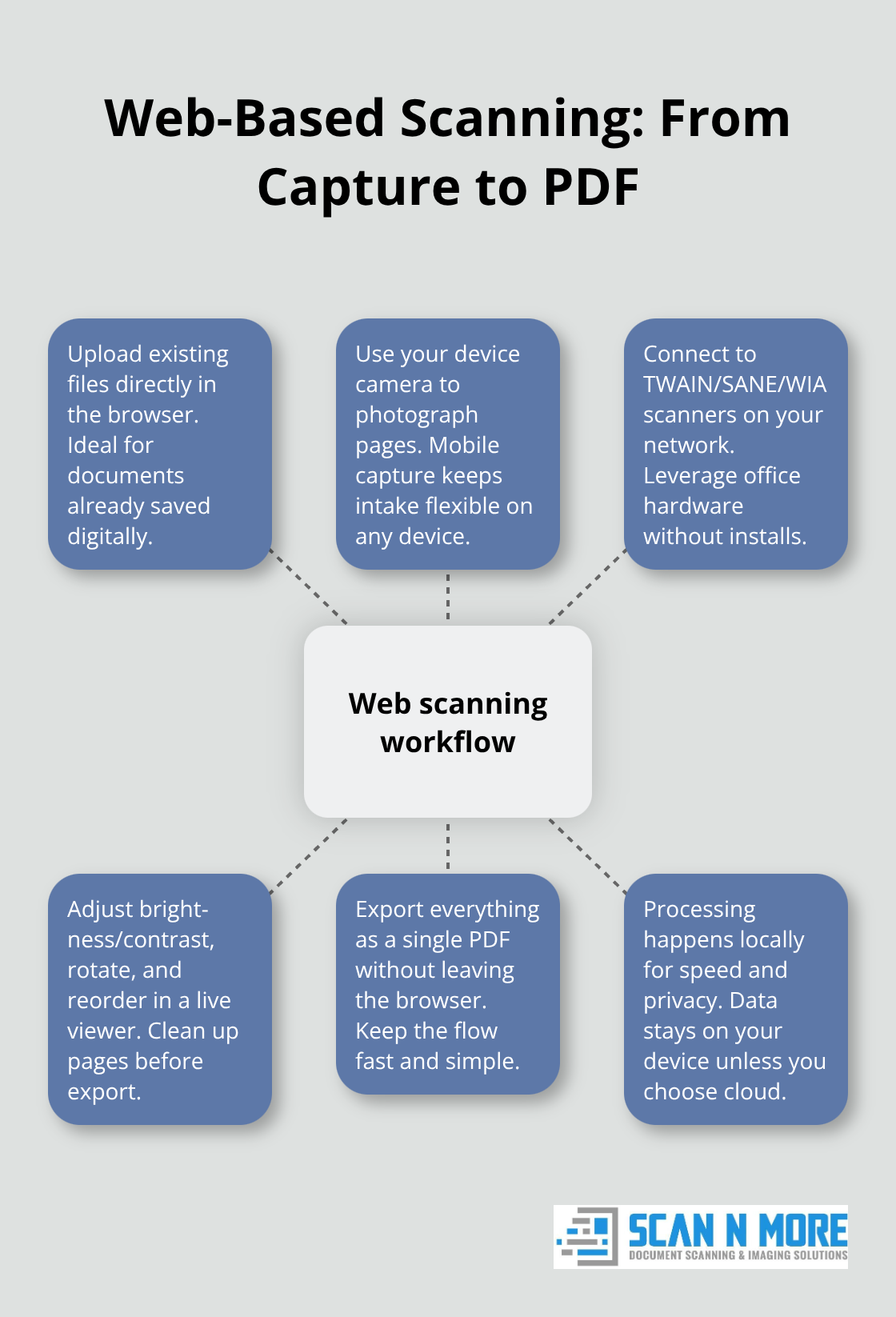
The speed advantage is substantial-no waiting for uploads or downloads, no account creation required, and no data collection from third parties. Most organizations complete their first multi-page scan-to-PDF workflow within minutes of opening the tool.
Cloud Versus On-Premise Storage
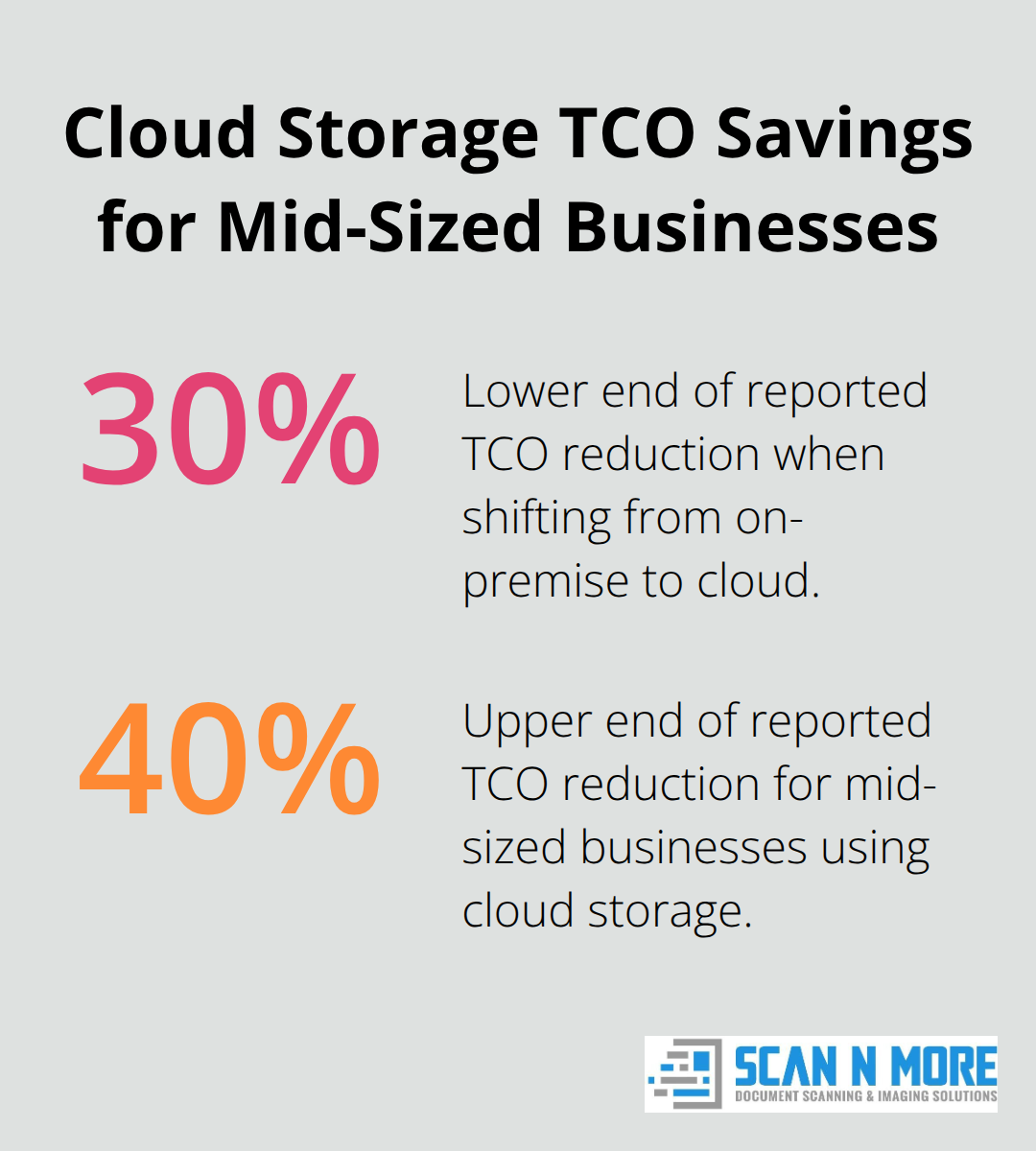
The choice between cloud and on-premise storage fundamentally changes your operational costs and security posture. Cloud storage through Google Drive, Dropbox, or Microsoft OneDrive offers remote access from anywhere and built-in collaboration features where multiple team members edit documents simultaneously, but introduces monthly subscription fees and reliance on third-party encryption. On-premise solutions keep files on your own servers, eliminating subscription costs and giving you complete data control, but require you to manage backups, security patches, and hardware maintenance yourself. Companies handling regulated industries like healthcare or finance often choose hybrid approaches-scanning through a web interface but storing documents on secure local servers. The real cost difference emerges when you factor in infrastructure: on-premise setups demand dedicated IT resources and physical space for servers, while cloud services shift those costs to predictable monthly payments. Most mid-sized businesses find that cloud storage reduces their total cost of ownership by 30-40% compared to maintaining on-premise infrastructure, though this varies based on document volume and compliance requirements specific to your industry.
Why Organizations Are Making This Shift Now
Businesses moved to web-based scanning primarily because filing cabinets became operational liabilities rather than assets. Paper documents occupy expensive office space, require climate control, and vanish when employees leave or retire with institutional knowledge. The shift accelerated during 2020-2023 when remote work made physical document access impossible and organizations suddenly needed digital alternatives. Modern web-based scanning eliminates the need for specialized IT expertise. The financial incentive is straightforward: reducing physical storage space frees up real estate costs, eliminating paper handling reduces labor hours spent filing and retrieving documents, and faster document access improves decision-making speed. Organizations handling high document volumes see the most dramatic improvements-companies processing 500+ pages daily report 50-60% reductions in document management time after implementation. The privacy advantage also matters: web-based systems that process locally on your device before optional cloud storage provide stronger protection for sensitive information than traditional scanning workflows that required uploading to vendor servers.
What You’ll Need to Get Started
Your next step involves evaluating the specific hardware and software that fits your organization’s document volume and workflow patterns. The decisions you make here directly impact both your initial setup costs and your long-term operational efficiency, which is why understanding your options matters before you commit to any particular platform or vendor.
Building Your Scanning and Storage Infrastructure
Selecting Hardware That Matches Your Volume
Your hardware selection determines whether web-based scanning becomes a competitive advantage or a source of frustration. Sheet-fed scanners like the Fujitsu ScanSnap iX1500 or Canon imageFORMULA DR-C225 excel at processing high volumes because their automatic document feeders handle 25-50 pages per minute without manual intervention, making them ideal if your organization processes 500+ documents daily. Flatbed scanners work better for bound documents, photographs, or irregular materials that would jam in sheet-fed models. Two-sided scanning capability reduces your document count by half and cuts processing time accordingly, which matters when you manage thousands of pages monthly. Network connectivity through WiFi or Ethernet lets multiple team members access the scanner without physical proximity, eliminating bottlenecks where one person controls the device.
Configuring Software and Scanning Defaults
Web-based platforms eliminate the need for installation on individual machines; your team accesses scanning through their browser, which works across Windows, macOS, and Linux without compatibility headaches. REST API approaches provide the flexibility to integrate scanning into custom workflows without vendor lock-in. Set your scanning defaults to 300 DPI for standard documents and 600 DPI when you need searchable text through OCR, which costs roughly 2-3 cents per page through most vendors but dramatically improves document retrieval. Choose PDF format for documents you’ll archive long-term and JPEG for images you’ll edit frequently.
Integrating Cloud Storage with Your Workflow
Cloud storage integration depends on your existing workflow ecosystem. If your organization already uses Microsoft Office 365, OneDrive integration makes documents accessible through familiar interfaces and reduces adoption friction since employees already have accounts. Google Workspace organizations should standardize on Google Drive, where native collaboration features let multiple people edit documents simultaneously without email version chaos. Dropbox works as a neutral option if you lack organizational standardization, though it introduces additional subscription costs alongside your cloud storage. Configure automatic folder structure rules that eliminate manual filing-scan a receipt and the system automatically routes it to Expenses > Q2 > April based on metadata rules you establish once. This reduces filing errors and saves time compared to manual organization.
Establishing Access Controls and Encryption
Security protocols must include role-based access controls that prevent information leakage through overshared access. Enable two-factor authentication on all cloud accounts because compromised credentials represent your highest-risk vulnerability; a single employee’s password breach exposes your entire document library. Encrypt files at rest using your cloud provider’s native encryption, which Google Drive and Microsoft OneDrive handle automatically, and enforce HTTPS connections so documents never transmit unencrypted across networks. For regulated industries handling healthcare or financial data, configure audit logs that track who accessed which documents and when, creating accountability that satisfies compliance auditors.
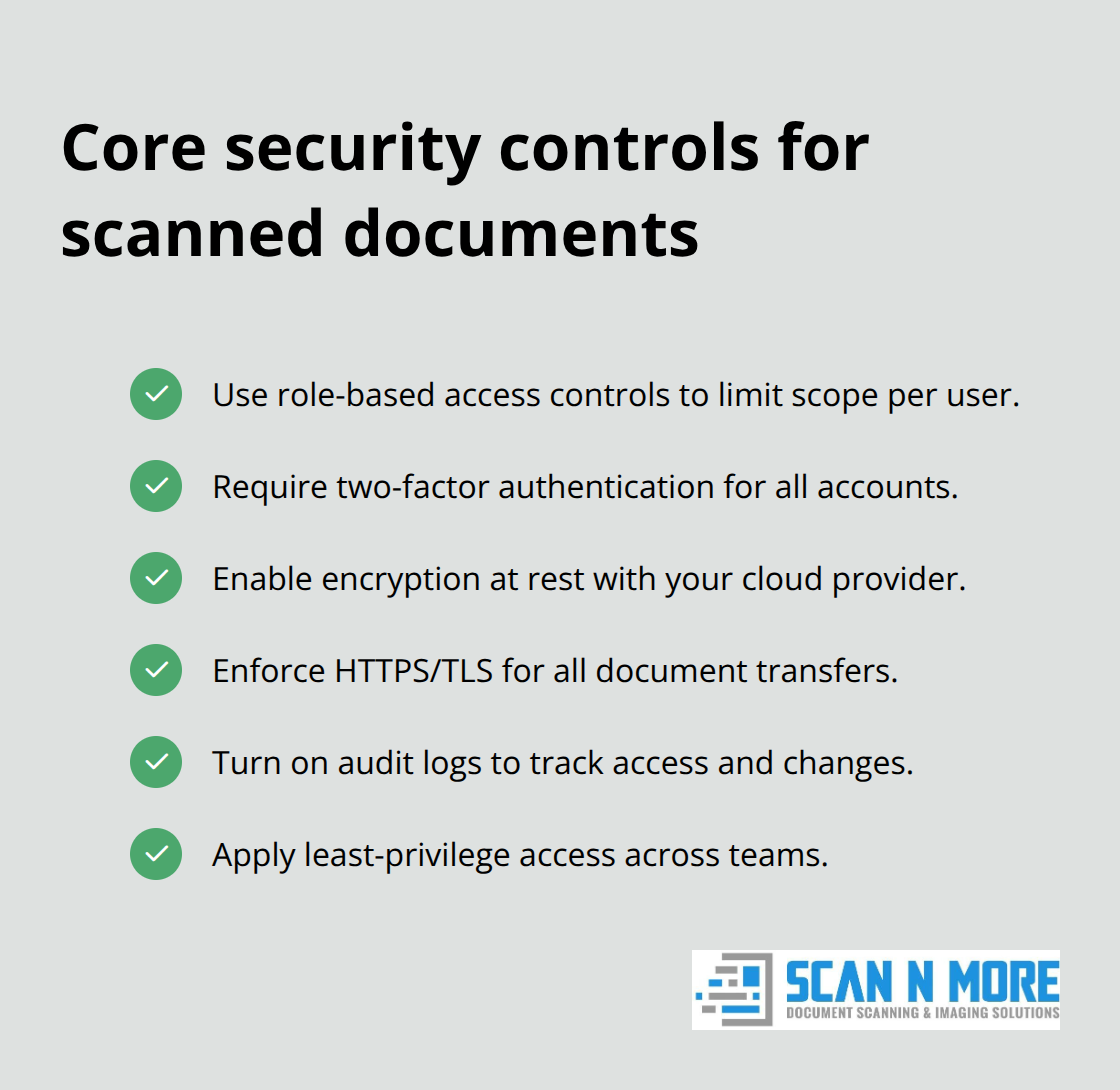
Your security posture should assume that someone will eventually obtain credentials, so design your system so that compromised access reveals minimal damage-this means limiting document scope per user role rather than granting everyone full library access.
Preparing for Team Adoption
Once you finalize your hardware, software, and security configuration, your infrastructure sits ready for the people who will actually use it daily. The technical setup matters far less than whether your team understands how to operate the system efficiently and follows the protocols that keep your documents protected.
Managing Documents After the Scan
Your hardware and security protocols are now operational, but the real work starts when thousands of documents flow into your system daily. Without intentional naming conventions and metadata standards, your scanned documents become unsearchable chaos that negates every efficiency gain from digitization. Establishing clear file organization rules from day one prevents the common scenario where employees develop their own naming systems, creating duplicate folders named Invoice, Invoices, 2024 Invoices, and Current Invoices that fragment your document library.
Implement Standardized naming and metadata
We recommend implementing a three-level naming structure: department-documenttype-date. An accounts payable invoice scanned on April 15, 2026 becomes AP-Invoice-20260415 rather than something vague like Final Invoice or Important Document. This standardized approach makes documents discoverable through simple searches and prevents the frustration of employees spending time locating files that should take seconds.
Metadata fields extend this organization beyond filenames by tagging documents with vendor names, project codes, or cost centers that allow filtering without renaming files. Most cloud platforms including Google Drive and OneDrive support custom metadata, and configuring these fields before your team starts scanning prevents retroactive cleanup work that consumes hours of administrative time. Set your metadata fields based on how people actually search for documents in your organization, not how IT thinks they should search. If your accounting department constantly filters by vendor, make vendor a mandatory metadata field. If your legal team needs to track document dates, implement date tagging. This prevents the scenario where your system captures information nobody needs while missing data people search for constantly.
Control Versions and Prevent Overwrites
Document versions multiply rapidly when multiple team members edit the same file, creating situations where someone approves Version 3 while another person is still working from Version 2. Implement a clear version control approach immediately after implementing your scanning system rather than waiting for chaos to force the issue. Microsoft OneDrive and Google Drive both maintain version history automatically, allowing recovery of previous versions if someone overwrites critical information, but this passive approach doesn’t prevent the human confusion that occurs when multiple versions circulate via email.
Establish a rule that only one person owns each document type at any given time, and that person manages all updates before distribution. An invoice template owned by your accounting manager gets updated once, then distributed to the team as read-only, preventing freelance modifications that create compliance headaches. This ownership model eliminates the ambiguity that causes document disasters.
Set Retention policies based on regulations
Retention policies determine how long you keep scanned documents before deletion, and these policies should align with your industry regulations rather than vague assumptions. Healthcare organizations must retain HIPAA compliance documents for 6 years. Financial firms follow SEC/FINRA rules requiring 3–6 years of retention. Tax documents require retention for at least 3 years according to IRS standards, though many organizations maintain them for 7 years to cover statute of limitations extensions.
Document your retention policy in writing and configure your cloud storage to automatically delete expired documents rather than relying on manual cleanup that never happens. This prevents the expensive scenario where your organization accidentally destroys records during a compliance audit.
Train Your Team on Actual Workflows
Your team’s actual behavior with the scanning system matters infinitely more than the technical capabilities you’ve built. Employees who don’t understand the naming convention will create their own folders. Employees unclear about version control will email documents to each other. Employees unaware of retention policies will hoard files indefinitely.
Conduct hands-on training sessions where people physically scan documents using your system rather than watching presentations about how scanning works. Show them the exact folder structure they’ll use, the metadata fields they’ll populate, and the version control process they’ll follow. Make training mandatory for anyone touching documents, and schedule sessions during work hours rather than expecting people to attend on their own time.
Follow initial training with spot-check audits 30 days after launch where you examine actual scanned documents to identify naming inconsistencies or metadata gaps, then provide targeted reinforcement training to fix the problems before bad habits solidify. Create a simple one-page reference guide showing your exact naming convention, required metadata fields, and version control process that employees can reference without reopening training materials. This reference guide should live in a shared location and be available offline so people can consult it without searching through email or shared drives.
Final Thoughts
Web-based document scanning succeeds when infrastructure matches your document volume, security protocols protect sensitive information, and your team adopts the system as daily practice. Organizations eliminate physical storage costs by removing filing cabinets, recover labor hours through searchable document retrieval, and reduce infrastructure expenses compared to maintaining on-premise servers-most mid-sized organizations recoup implementation costs within 12-18 months through space savings and productivity gains alone. Companies processing high document volumes report 50-60% reductions in document management time after full implementation, while remote employees access files from anywhere without VPN complexity.
Start with a pilot program using one department rather than attempting organization-wide rollout immediately, which identifies adoption challenges before they affect your entire operation and builds internal advocates who mentor other teams. Allocate budget for training that includes hands-on practice with your actual naming conventions and metadata standards, then conduct 30-day audits to catch inconsistencies before bad habits solidify. For organizations managing large document backlogs or complex compliance requirements, Scan N More provides professional scanning services that handle digitization at scale while your team focuses on workflow optimization.
Your next step involves selecting the hardware and software that fits your specific document volume, then scheduling team training before your first scan. The infrastructure you build today determines your operational efficiency for years ahead.