
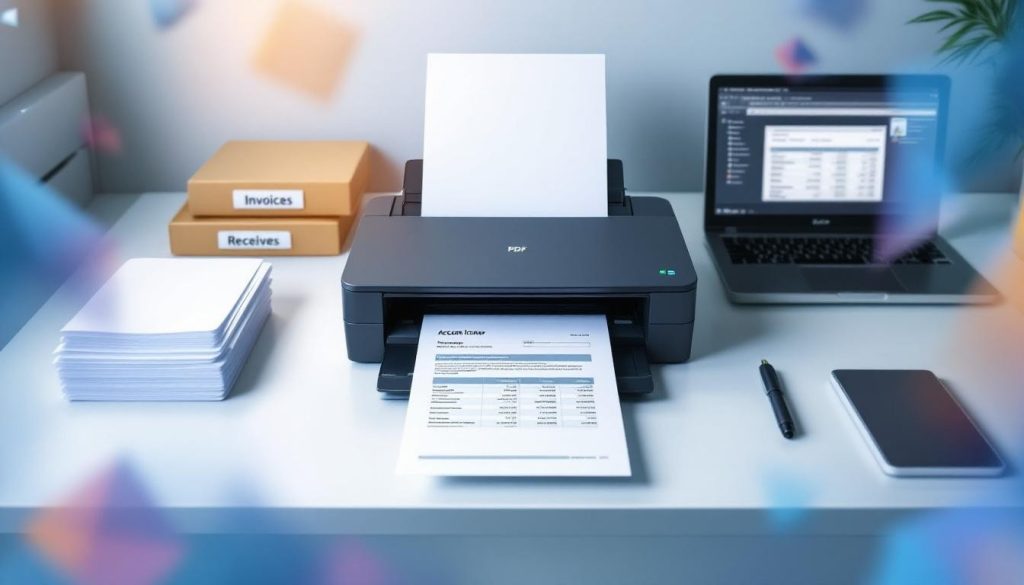
Small businesses waste thousands of dollars annually storing paper documents that could be digitized. Filing cabinets take up valuable office space, and finding a single document often takes hours instead of minutes.
We at Scan N More know that document scanning for small business isn’t just about going paperless-it’s about reclaiming your workspace, speeding up operations, and protecting your data. This guide walks you through everything you need to know to get started.
Why Small Businesses Need Document Scanning
Storing physical documents costs small businesses significant money when you factor in rent, climate control, and retrieval labor. Off-site storage of physical paper documents typically costs anywhere from 50–95 cents per box, per month. A business with 50 banker’s boxes spends $300 to $570 yearly on storage alone, not counting retrieval fees when you need an old document. Digitizing those documents eliminates this expense within the first year in most cases.
The Real Storage Math
A banker’s box holds 2,000 to 2,500 pages and costs roughly $6 to $11.40 annually to store offsite based on standard rates. Professional scanning services typically charge $0.08 to $0.18 per page for standard documents, meaning those 50 boxes cost between $1,600 and $4,500 to digitize once. The payback happens within six months to a year. After that, you operate at zero storage cost while your data sits on secure cloud servers or internal drives.
Workflow Speed and Team Morale
Document retrieval transforms dramatically once you scan your files. A typical employee spends 30 to 40 percent of their workday searching for physical documents, according to industry benchmarks. Once scanned with OCR technology, finding a specific invoice, contract, or client file takes seconds instead of hours.
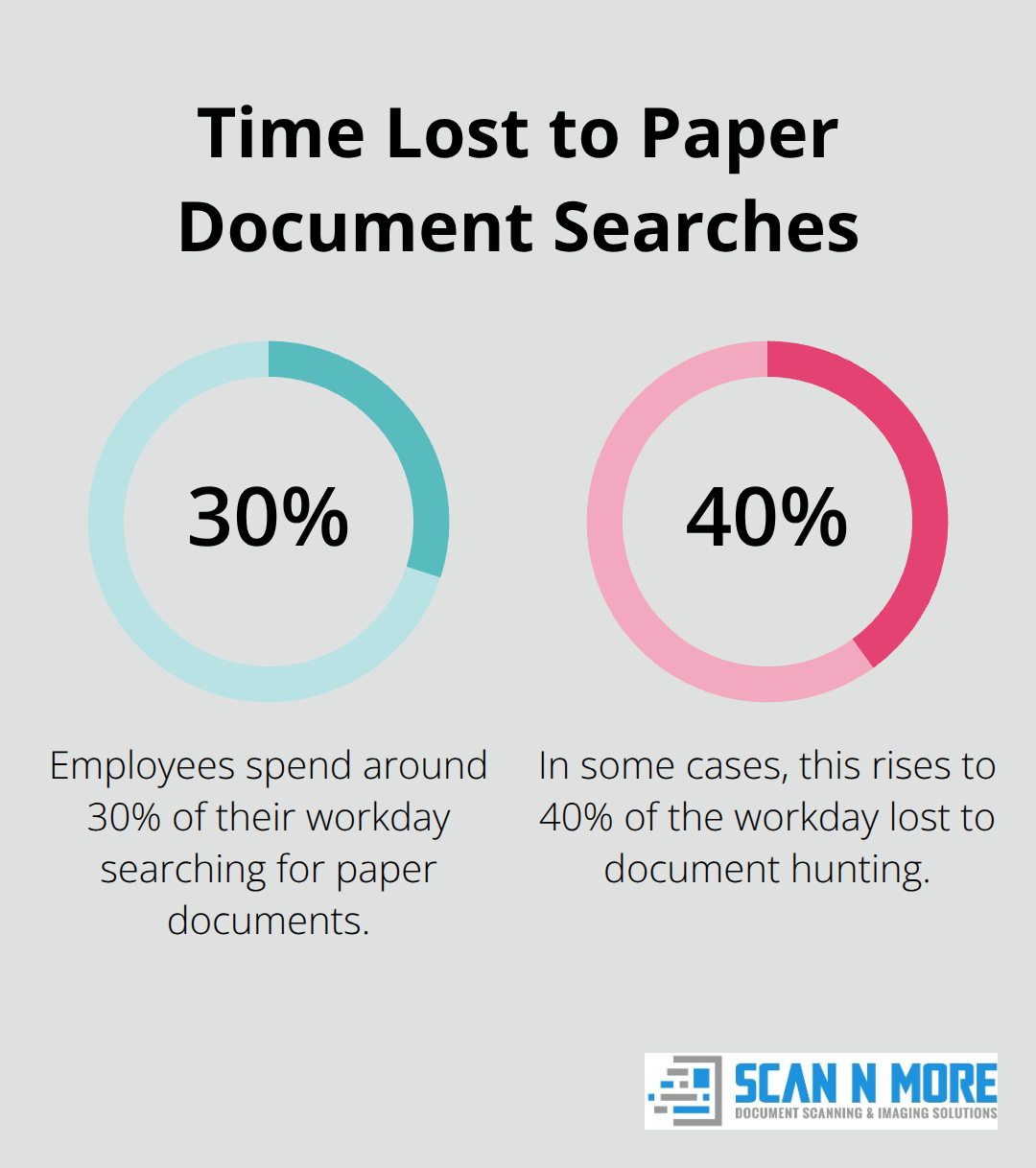
This speed boost compounds across your team-a five-person office regains roughly 6 to 8 hours of productive time weekly just from faster document access.
Employees consistently report frustration with paper-based workflows. When your accounts payable team can instantly retrieve any invoice by searching for a vendor name or date, approval cycles drop from five days to one day. That acceleration ripples through your entire business-faster invoice processing means better cash flow, faster client onboarding means quicker revenue recognition. Teams also prefer working with digital documents because they can access files from home, on a job site, or from a mobile device without returning to the office.
Security and Data Protection
Paper documents are vulnerable to fire, flooding, and theft. Digital files backed up to encrypted cloud servers or secure on-premises systems protect themselves automatically. If a natural disaster strikes your office, your documents survive. If an employee leaves the company, you instantly revoke their access to sensitive files rather than hoping they didn’t make copies of paper records. This protection matters especially for small businesses that lack dedicated IT security teams-digital document systems handle encryption and access controls automatically.
Compliance becomes manageable when documents are digital. Regulations like HIPAA for healthcare businesses, GDPR for handling customer data, and FINRA for financial firms require strict audit trails and access controls. Digital scanning systems provide automatic logging of who accessed what document and when, which satisfies auditors far more easily than explaining how you protect filing cabinets in a locked room. These systems also support retention policies and secure deletion, helping you meet legal obligations without manual oversight.
Now that you understand why document scanning matters for your bottom line and operations, the next step is deciding how to actually implement it-whether you handle the work in-house or partner with a professional service.
Setting Up Your Document Scanning System
Professional scanning services deliver speed and compliance that in-house equipment rarely matches. When you scan 50 banker’s boxes yourself, you face roughly 100,000 to 125,000 pages that need feeding, organizing, and quality checking. At a realistic pace of 500 to 1,000 pages per employee per day, that work consumes two to three months of full-time effort for a single person, plus the cost of equipment you might use once. Professional services charge $0.08 to $0.18 per page for standard documents, meaning those 50 boxes cost between $8,000 and $22,500 depending on document condition and indexing complexity. That sounds expensive until you calculate what one full-time employee costs over three months, including equipment, software licenses, and the opportunity cost of pulling them away from revenue-generating work. If you have fewer than 5,000 pages, in-house scanning with a basic multifunction printer makes sense because the time investment stays reasonable. If you have 20,000 pages or more, professional services almost always beat the DIY route financially and operationally.
Choosing the Right Equipment for Small Offices
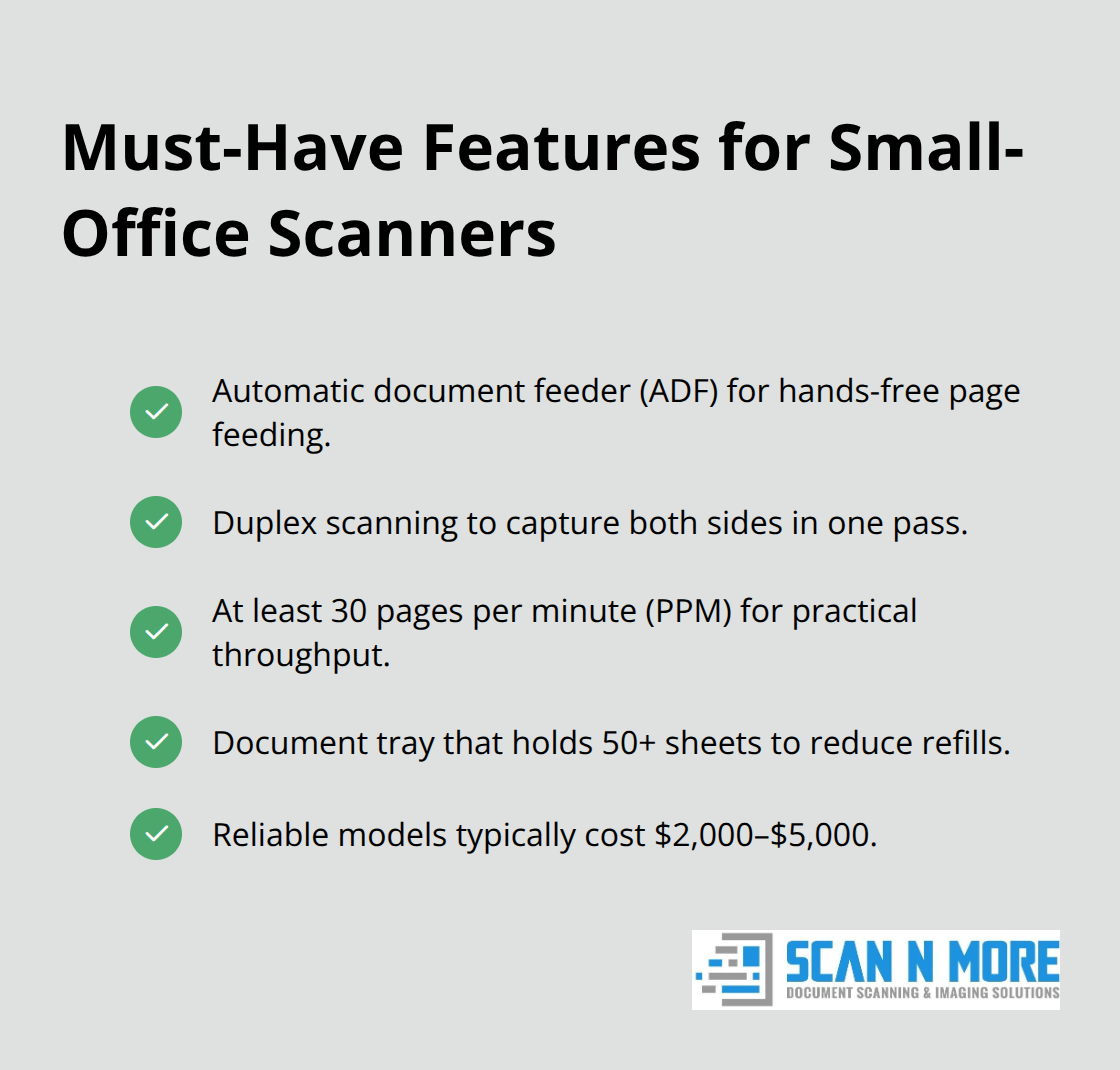
If you decide to scan documents in-house, prioritize a multifunction printer with automatic document feeder capability and duplex scanning. These devices feed pages automatically and scan both sides in one pass, cutting your actual scanning time roughly in half compared to single-side manual feeding. Look for machines rated for at least 30 pages per minute with a document tray holding 50 or more sheets. Xerox, Canon, and HP all manufacture reliable small-office models in the $2,000 to $5,000 range.
Software matters more than hardware for small businesses. ABBYY FineReader delivers OCR accuracy across 198 languages and integrates with Microsoft 365 and SharePoint, making it ideal if your team already uses those platforms. DocuPipe lets you build custom extraction workflows with a visual editor and handles 60+ languages plus handwritten text recognition, which works well if you process invoices or forms with variable layouts. Nanonets offers 300+ pre-trained extractors that improve accuracy automatically as you correct results, plus native integrations with Google Drive, Dropbox, Salesforce, and QuickBooks. For mobile-first scanning, Adobe Scan turns smartphone photos into searchable PDFs with automatic image correction and syncs to Adobe Document Cloud. CamScanner works similarly and supports 41 languages plus direct exports to Word, Excel, and PowerPoint. The gap between cheap tools and professional software is real: most free or $5-per-month solutions lack OCR searchability, multi-language support, or batch automation that actually saves time.
Building a Filing System That Works
Before you scan a single page, define your indexing structure or you’ll spend months searching through digital chaos. Indexing means deciding what metadata you attach to each document so you can find it later. For a typical small business, invoice number, vendor name, and date cover 80% of retrieval requests. Client name, project code, and document type work for professional services firms. Medical practices need patient ID, visit date, and document category. The more granular your indexing, the slower and more expensive the scanning project becomes.
Basic folder-level indexing costs nothing extra and works fine if your scanner uses OCR to make files full-text searchable. Document-level indexing, where you name each individual file and tag it with metadata, typically adds $0.02 to $0.05 per page to professional scanning costs. Zonal OCR, which extracts specific fields from forms automatically, adds another $0.03 to $0.08 per page depending on form complexity. Start with full-text OCR searchability and folder-level organization, then expand to document-level indexing only if your team consistently struggles to locate files.
Establishing Consistent Folder Structures
Consistency in your folder structure matters enormously for long-term usability. If you scan invoices into folders named Invoice-2026, Invoice-2025, and Old Invoices, searching becomes frustrating. Use YYYY-MM format for date-based folders, alphabetical order for client or vendor names, and avoid abbreviations that future employees won’t understand. Test your system with 500 pages before you commit to a full-scale project. This trial run reveals whether your indexing approach actually works or whether you need to adjust your metadata strategy before you process thousands of documents.
With your equipment selected and your filing system designed, the next step involves choosing between handling the work yourself or partnering with a professional service to execute the actual scanning and processing.
Protecting Your Digital Documents After Scanning
Once your documents are scanned and organized, the real work of maintaining them begins. Digital files require active protection through backups, access controls, and team training-neglect any of these and you’ll face data loss, security breaches, or compliance violations that cost far more than the original scanning project. Too many small businesses treat scanning as a one-time event rather than the start of an ongoing management practice.
Implement the 3-2-1 Backup Rule
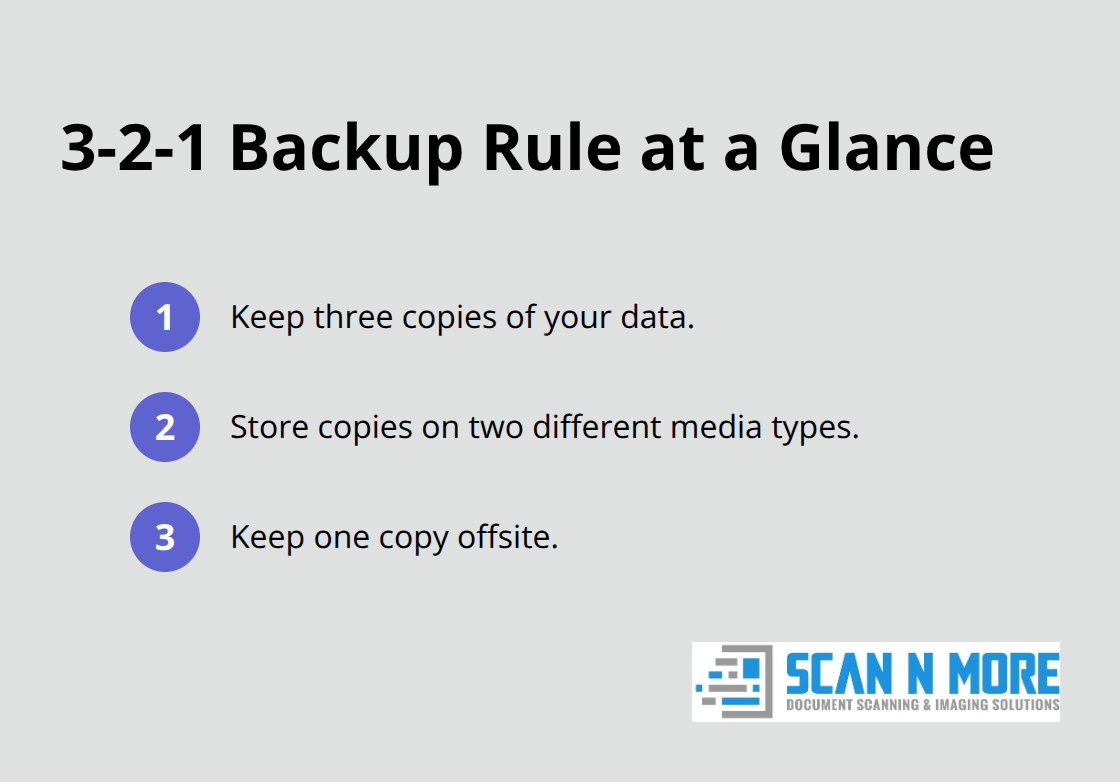
Your backup strategy should follow the 3-2-1 backup rule: keep three copies of your data, store them on two different media types, and keep one copy offsite. For a small business, this means your primary files live on a cloud service like Google Drive, OneDrive, or Dropbox, a second copy sits on an external hard drive stored in your office, and a third copy resides on another external drive kept at a different location-ideally a coworker’s home or a bank safe deposit box. Cloud providers handle daily incremental backups automatically, but the offsite hard drive requires quarterly or semiannual updates depending on how frequently you add new documents.
Many small businesses skip the physical backup step because cloud storage feels permanent, but cloud accounts get hacked, service providers experience outages, and ransomware attacks have encrypted entire cloud folders. A physical backup sitting offline cannot be encrypted by malware. Schedule your backup routine on a calendar-literally block time every quarter to copy your latest documents to that external drive and move it offsite. This sounds tedious, but ransomware attack recovery costs small businesses significantly in recovery and downtime. One afternoon of backup work prevents that disaster.
Control Who Accesses What
Access controls separate businesses that operate securely from those that eventually suffer breaches. Every employee should not have access to every document-your receptionist doesn’t need payroll records, and your bookkeeper doesn’t need medical files or personnel evaluations. Most cloud services and document management systems let you assign folder-level or document-level permissions, and you should configure these immediately after scanning. Use role-based access: accounting staff get access to invoices and expense reports, HR staff access personnel files and benefits documents, and management sees everything.
Revoke access the moment someone leaves your company-don’t wait until their last day or assume they won’t access files after departure. Audit your access logs monthly by downloading user activity reports from your cloud provider or document management system; these reports show who opened which files and when, creating the paper trail auditors expect to see. If someone accesses documents they shouldn’t, you have documentation of the violation.
Encrypt Files and Destroy Old Hardware Safely
Encryption in transit and at rest protects files from interception during upload or from theft of physical drives. Most major cloud providers encrypt automatically, but verify this in their security documentation. For files stored on physical drives, use BitLocker on Windows machines or FileVault on Macs to encrypt the entire drive.
When you dispose of old computers or drives, use a certified data destruction service rather than simply deleting files-data recovery software can retrieve deleted files even after formatting, so physical destruction or certified overwriting is the only truly safe option.
Train Your Team on Document Security
Team training prevents the human errors that undermine even the best technical safeguards. Employees need to understand where to save scanned documents, how to name files consistently, when to request access to restricted folders, and how to recognize phishing emails that attempt to steal login credentials. Spend 30 minutes in a group meeting walking through your filing system, showing staff how to search for documents using your OCR-enabled system, and explaining why they cannot share login passwords or leave computers unlocked. Include a brief annual refresher because employee turnover means new staff members arrive without this knowledge.
Many small businesses overlook this step because training feels like a soft skill rather than a technical requirement, but a single employee who saves invoices in the wrong folder or forwards sensitive files to an unsecured email account creates chaos that takes weeks to resolve. Document your training in writing-have employees sign a simple form confirming they understand your document access and security policies. This protects you legally if an employee later claims they didn’t know the rules, and it demonstrates due diligence to auditors or regulators investigating a security incident.
Final Thoughts
Document scanning for small business transforms how you operate, but only if you treat it as the beginning of a digital practice rather than a one-time project. Your team gains the ability to work remotely, approve documents in hours instead of days, and access files instantly rather than hunting through filing cabinets. Most small businesses recoup their investment within twelve to twenty-four months through eliminated storage fees, recovered office space, and accelerated workflows.
Your next step depends on your document volume and budget constraints. If you have fewer than five thousand pages, a multifunction printer with OCR software handles the work affordably, while professional scanning services deliver speed and quality for larger projects (twenty thousand pages or more). Compliance becomes manageable because digital systems automatically log access and enforce retention policies without manual oversight.
We at Scan N More specialize in transforming paper-based processes into digital solutions with on-site and off-site scanning for all document formats, including legal and medical records, plus secure data destruction and compliance support. Whether you choose to scan in-house or partner with professionals, the decision to digitize your documents today determines whether your business operates efficiently tomorrow.